Remove Portrait Backgrounds for Free
Cut out people, change a profile photo background and refine portrait edges locally with Clearcutt.
The short answer for portraits
Open the editor in desktop Chrome or Edge, upload a sharp JPG, PNG or WebP portrait, and the model runs on your device. Refine the edge with Erase and Restore, then keep transparency, choose white or a custom color, and download a PNG at full output size without a watermark. Nothing is uploaded, which matters for photos of identifiable people.
Start with a well-lit portrait
Choose a sharp photo with the person’s outline visible. Even lighting and a slight contrast between the person and the backdrop give the model cleaner edges to find. Use photos you own or have permission to edit, especially for pictures of other people.
Refine hair, glasses and clothing
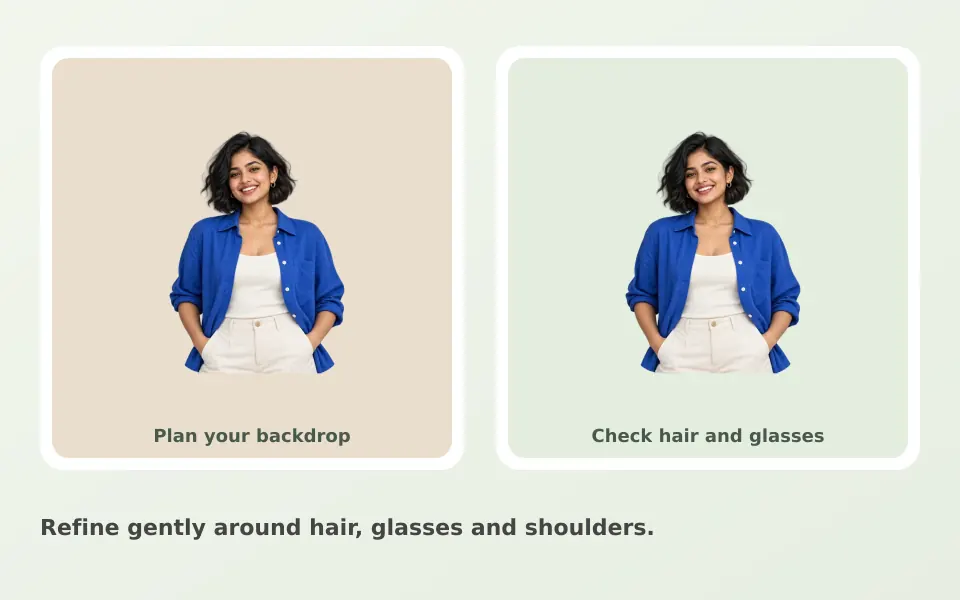
Hair, veils, glasses and clothing similar to the backdrop can need correction. Use a small Restore brush to recover the subject and Erase to remove remaining fragments. Work at a zoom level where you can see individual strands, and check the result against both light and dark backgrounds before saving.
Choose the new background
Keep a transparent PNG for presentations, white for a clean profile look, or a custom color to match a brand. You can also place the cutout over a background photo. Choose PNG to preserve transparency or JPG for a solid background. The transparent background guide covers alpha checks in other apps.
Understand the result
Clearcutt edits a subject mask; it does not retouch skin or reconstruct hair that was never visible in the photo. Both AI models use 512px internally. Full-size export preserves image dimensions but does not add native-resolution segmentation detail.
Honest limits for official photos
Passport, visa and exam authorities typically specify exact dimensions, background shade and print requirements, and they generally expect an unedited, properly photographed original. Clearcutt does not resize images or certify any photo as compliant. Check the official requirements of the authority you are applying to before using any edited photo. For the general tool workflow, see the background removal guide.
Frequently asked questions
Are my portrait photos uploaded anywhere?
No. The photo, the mask and your edits stay in browser memory on your device. This is especially relevant for portraits of identifiable people: nothing is sent to Clearcutt’s payment backend.
Can I use a Clearcutt cutout as a passport or ID photo?
Usually not. Authorities typically require unedited photos meeting exact size, background and print specifications. Clearcutt does not resize images or certify compliance. Follow the official requirements of the authority concerned.
How do I fix hair that lost strands or gained background fragments?
Zoom in and use a small Restore brush to bring back missing strands and a small Erase brush to remove leftover background. Check the edge against both light and dark backgrounds, since a mask that looks fine on one can fail on the other.
Why does my result look lower detail at the edges?
Both AI models compute the mask at 512 pixels internally. The export keeps your photo’s full dimensions, but it does not add native-resolution segmentation detail, so fine edges can still need brush work.
Can I put my portrait on a custom background color or photo?
Yes. Keep the checkerboard for transparency, pick white or a custom color, or add a background photo in the editor. Download PNG to keep transparency or JPG for an opaque image. Both formats export without a watermark.