Pure White Product Backgrounds for Amazon India, Flipkart, Meesho and Myntra
Clearcutt lets Indian ecommerce sellers place single product photos onto a pure white (#ffffff / RGB 255, 255, 255) or transparent background privately in the browser with no watermark. Because catalog image rules vary across Amazon India, Flipkart, Meesho, and Myntra—and by product category—check your seller panel's vertical guidelines and format requirements before uploading.
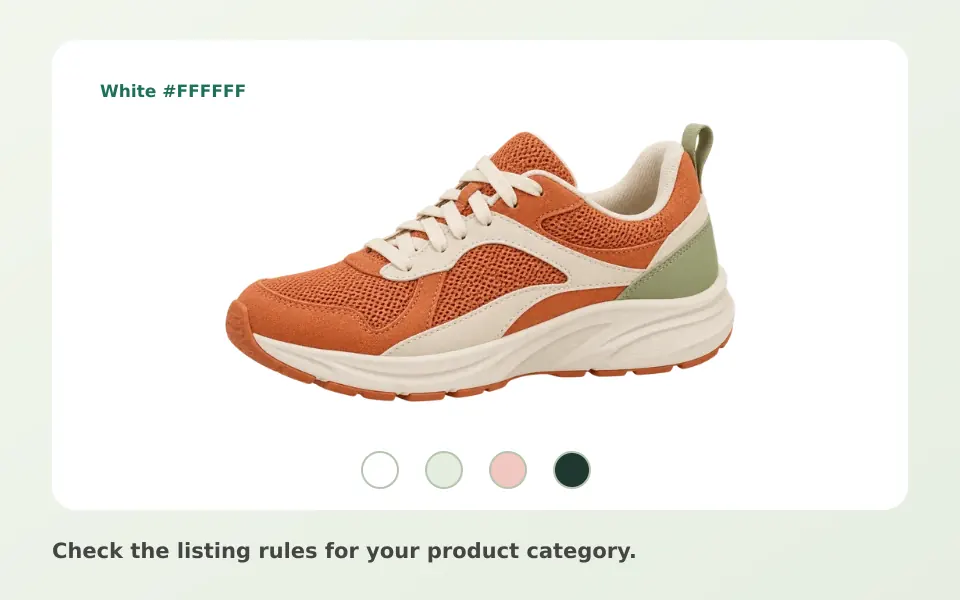
How white-background rules differ across Amazon India, Flipkart, Meesho and Myntra
Pure white (#ffffff) is widely used for Indian marketplace main images, but no single rule applies to every platform or category. Review the official requirements inside your seller account for each vertical you list:
- Amazon India's public seller guide lists JPEG as the preferred format, accepts TIFF, and caps the longest side at 10,000 pixels. It recommends both dimensions be at least 1,000 pixels for zoom. Check the current main-image and category requirements in Seller Central.
- Flipkart Seller Hub: Flipkart's listing workflow recommends high-resolution, multi-angle product images on a white background for standard catalog quality checks, while Flipkart's fashion photography guidance explicitly allows neutral white, grey, or beige walls and category-suited backdrops.
- Meesho Supplier Panel: Public Meesho supplier category guides instruct sellers to upload a clear front image in JPEG format without logos, watermarks, props, or partial views, and point to detailed per-category image rules inside the Meesho Supplier Panel.
- Myntra (DIY / MAS Cataloging): Myntra Seller University publishes category-specific image guidelines plus model styling and sizing rules, so open the sheet for your vertical inside the portal. Some apparel verticals specify studio model photography rather than isolated #ffffff cutouts.
Sources: Amazon India seller guide · Flipkart Seller Hub listing guide · Flipkart fashion photography guide · Meesho supplier catalog guides · Myntra Seller University cataloging guidelines
Creating a pure white (#ffffff) product cutout in Clearcutt
Photograph one clean, unpacked product (unless packaging is an explicit product feature) in diffused, even lighting against a contrasting surface so pale edges remain easy to inspect. Avoid harsh floor shadows or coloured tabletops that cast tint onto reflective parts.
- 1. Open Clearcutt on desktop Chrome or Edge and upload, drop, or paste a JPG, PNG, or WebP photo up to 20 MB and 25 megapixels (Android Chrome defaults to the 98 MB Standard model and has worked in user testing, though low-RAM phones are not guaranteed; iOS and HEIC are unsupported).
- 2. Select 'Standard · original model (98 MB)' for straightforward shapes, or 'Detailed · larger model' (up to 473 MB on capable hardware) when a smaller product occupies under 85% of the frame and benefits from Clearcutt's focused 512px crop pass.
- 3. Click the White swatch (#ffffff) to set an exact RGB 255, 255, 255 background, or leave Transparent selected if you are placing the cutout into a separate catalog template.
- 4. Inspect straps, handles, ports, and inner cutouts using 'Result' vs 'Original'. Clean the mask with 'Erase' and 'Restore' (5–150 px brush; multi-step 'Undo' and 'Reset cutout' included), then click 'Download PNG'.
General product photography lighting and cutout tips
Sources: Clearcutt input requirements · Clearcutt model and runtime notes · Clearcutt editor and export notes · Clearcutt platform support notes
Product framing, Trim empty edges, and JPG export
Understanding how Clearcutt exports canvases prevents accidental catalog rejections. When 'Trim empty edges' is left unchecked, Clearcutt preserves your original photo's pixel width and height. When 'Trim empty edges' IS checked, Clearcutt crops tightly to the outer edge of the detected product with zero white margin—even when the White (#ffffff) swatch is active.
If you need a square 1:1 or 3:4 marketplace canvas with clean white breathing room around the product, either frame your camera shot with that margin and leave 'Trim empty edges' unchecked, or export a trimmed transparent PNG and place it onto a sized #ffffff canvas (for example, 1500×1500 px or 2000×2000 px) in your layout editor. When your catalog feed requires JPEG, choose the White swatch and select Download JPG. Leave the JPG options blank and Trim empty edges off to keep your original canvas dimensions. If the marketplace specifies a maximum file size, enter it in KB under Limit JPG file size. Use Set JPG dimensions for exact pixel dimensions, or an external editor to arrange the product differently on the canvas.
Exporting transparent background PNGs for combo graphics and banners
Sources: Clearcutt editor and export notes · Amazon India seller guide · Meesho supplier catalog guides
Single-image limits, glass/jewellery edges, and honest capabilities
Clearcutt processes one photo per run in your browser memory without uploading product images to a backend server. There is no bulk folder queue, Excel/CSV catalog integration, or public API today, and Clearcutt Plus (₹90 for 30 days, manual renewal) does not unlock batch processing yet—so Clearcutt fits individual SKU launches, sample listings, and hero-image cleanup rather than multi-hundred-SKU automation.
Both AI models compute masks at 512×512 internal resolution. Transparent glass bottles, fine jewellery chains, mesh fabrics, and polished steel can retain colour reflections from the original room or lose thin links, and Clearcutt does not generate synthetic drop shadows or certifiably validate marketplace QC compliance.
Current free usage and Clearcutt Plus single-photo scope
Sources: Clearcutt model and runtime notes · Clearcutt privacy policy · Clearcutt pricing and plans
Editorially checked on 2026-11-13. Product behaviour can change; this guide is reviewed against the current editor and the official sources listed on this page.
Create a #ffffff product image in Clearcutt →
Frequently asked questions
Is Clearcutt's White swatch pure RGB 255, 255, 255 for Amazon India main images?
Yes. Selecting the White background swatch fills transparent areas with solid #ffffff, which is exact RGB 255, 255, 255. Check the framing and content rules for your category in Seller Central. Choose Download JPG if your listing requires JPEG.
Can I upload Clearcutt's PNG file directly to Amazon India, Flipkart, Meesho, and Myntra?
Amazon India's public seller guide lists JPEG and TIFF. Meesho's public category guides specify JPEG format for catalog images, and Flipkart or Myntra uploaders may impose their own format or aspect-ratio rules. Check the uploader in your seller panel, and choose Download JPG whenever your portal requires JPEG.
Do Flipkart, Meesho, and Myntra require pure white backgrounds in every category?
No. Rules depend on the platform and product vertical. While white backgrounds are standard for many hard-goods listings, Flipkart's fashion guide permits neutral white, grey, or beige walls, and Myntra publishes category-specific cataloging guidelines where apparel often specifies studio model photography rather than pure-white cutouts.
Does Clearcutt offer bulk catalog background removal, an API, or drop shadows?
No. Clearcutt edits one JPG, PNG, or WebP photo (up to 20 MB and 25 megapixels) at a time in your browser, has no batch uploader or public API, and does not generate realistic drop shadows or remove colour reflections from glass and chrome.
What happens if I check Trim empty edges on a white-background product photo?
Checking Trim empty edges crops the exported PNG tightly to the detected product's outer edge with zero white border, even when White (#ffffff) is selected. Leave Trim empty edges unchecked if your source photo already has the margin you want, or add exact canvas padding in a separate editor.