How to Remove an Image Background for Free
Learn to remove backgrounds, refine edges and export transparent PNGs with Clearcutt.
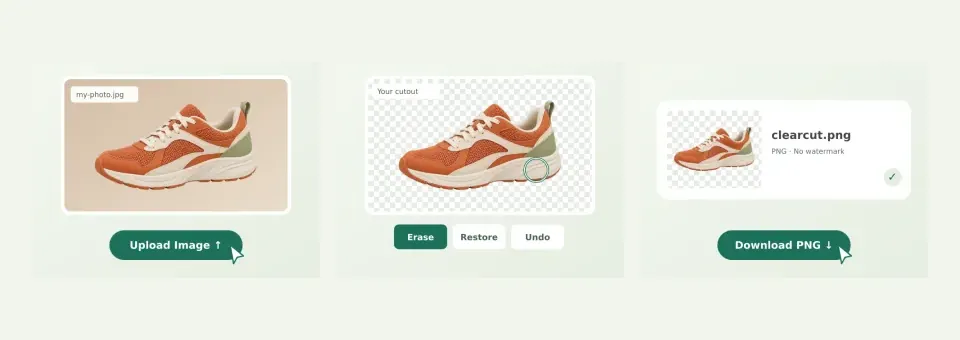
The short answer
Clearcutt removes a photo background directly in your browser at no cost. Open the editor in desktop Chrome or Edge, select, drop or paste a JPG, PNG or WebP photo, and the AI model runs on your device. Compare the result with your original, correct the edges with the Erase and Restore brushes, then download a PNG without a watermark. No installation is needed, and background removal works without signing in.
Step 1 — Choose your photo
Open the editor and select, drop or paste a JPG, PNG or WebP. The limit is 20 MB and 25 megapixels, and a sharp image with a clearly visible subject is easier to inspect and refine. If you want to try the workflow before using one of your own photos, load the sample photo in the editor first.
Step 2 — Run the model on your device
Standard mode downloads about 98 MB on first use; Detailed mode can download up to 473 MB. Browser caching can help later runs, but files can be cleared or evicted. Keep the tab open and allow time for your device to finish. Your photo is processed in the browser.
Step 3 — Refine and check the edges
Compare Original and Result to see where the mask went wrong. Use Erase and Restore with the circular brush cursor to correct it: Erase removes leftover background, and Restore brings back missing parts of the subject. A smaller brush gives you more control around hair, product edges and small gaps.
Step 4 — Pick a background and download
Keep the checkerboard for transparency, choose a solid color, or add a background photo. Trim empty edges if the cutout leaves unused canvas around the subject, then download the PNG before closing the tab. The export keeps your photo’s dimensions and does not add a watermark. If you need an alpha-transparent file, the transparent background guide explains how PNG transparency behaves in other apps.
What to expect and current limits
The editor handles one photo at a time, and batch processing and a public API are not available. HEIC photos from iPhones are not supported, and desktop Chrome or Edge is recommended. Both AI models compute the mask at 512 pixels internally, so very fine edge detail can still need brush work even though the export keeps the original dimensions. For subject-specific advice, see the product photo and portrait guides.
Watch the 3-step illustrated walkthrough

Frequently asked questions
Do I need to install software or create an account?
No. Clearcutt runs in a desktop browser, and background removal works without signing in. A Google account is only used for optional features such as publishing a review or managing a Plus membership.
Why is the first background removal slower?
The first run downloads an AI model to your browser: roughly 98 MB in Standard mode and up to roughly 473 MB in Detailed mode. Later runs can reuse the cached model files, although the browser can clear or evict that cache.
Which files can I use with Clearcutt?
JPG, PNG and WebP images up to 20 MB and 25 megapixels. HEIC photos from iPhones are not supported in the current release, and iOS browsers are not supported.
Are my photos uploaded to a server?
No. The photo, the mask and your edits stay in browser memory on your device and are not uploaded to Clearcutt’s payment backend. Model files are downloaded from Hugging Face and its content delivery network.
Can I process several photos at once?
Not currently. The editor works on one photo per run, and batch processing is not available today.